iPhone
Verify the product and purchase status in the App Store, then use your existing subscription to complete the initial setup. Check the App Store page for system requirements.
View the guideA rule-based routing client for iPhone / iPad, available exclusively on the App Store as a one-time purchase. Start by verifying the listing, then follow the in-app steps to import an existing subscription and check the connection.
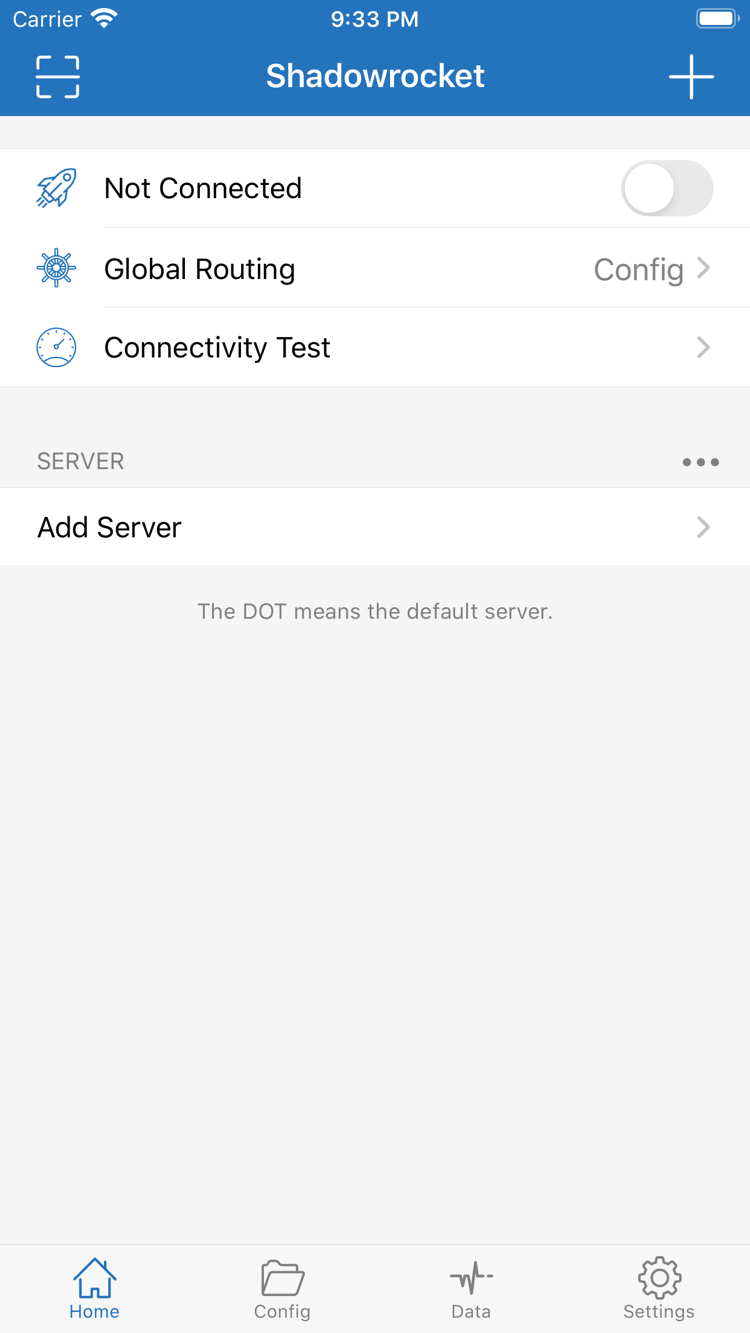
First distinguish connection triggers, traffic policies, and server parameters. Then adjust the relevant settings.
The index on the right covers rule syntax and settings, not the app interface.
Routing rules determine how different requests are handled. In Home, set Global Routing to Config to apply the rules in the active configuration. In Config, check which file is selected, then review the order under Rule. DOMAIN-SUFFIX matches domain suffixes, IP-CIDR matches IP ranges, and FINAL handles requests that did not match an earlier rule. Add specific exceptions first, followed by a fallback policy. After making changes, test the same destination and check the logs to confirm which rule matched. Avoid changing multiple settings at once, so you can pinpoint the cause of any unexpected result.
On Demand controls when the system initiates a connection under specified conditions; it does not replace Global Routing's traffic selection. In Settings, review On Demand and understand the current conditions before deciding whether to enable it. First verify that your existing server works with a manual connection, then configure automatic triggers. If the connection comes back after you turn it off, check this setting before repeatedly changing the server password. After switching between Wi-Fi and cellular, compare the system's connection status with the actual access result. Available conditions depend on the current app interface.
Support for multiple protocols lets you connect to different types of existing servers, but parameters for one protocol cannot be entered under another. When you open Add Server, check Type first, then enter Host, Port, and the authentication fields required by that protocol. Shadowsocks requires the corresponding Method; other types may also have transport and TLS options. Similar-looking fields are not necessarily interchangeable. Match each field to the details for your existing server, then save and test. A protocol name alone does not guarantee speed; the network path, server configuration, and device status all affect performance.
Subscriptions keep server entries up to date. Before proceeding, make sure you have your own valid subscription link. In Home, choose the corresponding Subscribe type in the add flow, enter the full URL, and save. Then check the groups and entries that appear. Query parameters in the URL may be used for authentication, so preserve them exactly and avoid sharing the link publicly. Before scanning a QR code, check whether it contains a single server or a subscription; they are updated differently. If the list is empty after an update, check the link and response instead of adding it repeatedly. This site explains how to import subscriptions but does not provide them.
Configuration files in Config organize settings such as General, Rule, and Hosts. They are separate from the subscription list in Home. Before making changes, confirm which file is selected and keep a recoverable copy. Change one category of settings at a time, noting what you changed and the test result. If you use iCloud sync, check the in-app sync option, system iCloud permissions, and the actual content on the destination device separately. Installing the app does not mean your configuration has been migrated. After restoring, check the active configuration, selected server, and Global Routing to ensure old settings have not overwritten your changes.
Connectivity Test in Home can help check server reachability, Data shows traffic records, and Diagnostics in Settings provides further troubleshooting tools. A single test only reflects the response under its specific conditions; it does not replace testing actual access. When something goes wrong, check the local network first, then server parameters, rule matches, and DNS. Change one condition at a time. Before sharing diagnostic records, remove subscription URLs, passwords, and other personal information. If the test responds but the destination still will not load, check the policy for that request rather than comparing test values alone.
Config, Proxy, and Direct are three traffic-handling modes, not three server subscriptions. Config selects a policy according to the active configuration's rules and is useful when different requests need different handling. Proxy sends traffic through the proxy policy and still depends on the selected server and related settings. Direct uses a direct connection and cannot verify whether a server works. After switching modes, test the same destination and check the connection toggle. If a rule change has no effect, confirm that Global Routing is set to Config and that you edited the file currently in use.
For the initial setup, make as few changes as possible: first verify the connection using your complete existing server details, then enable the rules you need, and finally adjust DNS and On Demand. Each step has a clear test, and you can easily revert to the previous settings. For step-by-step instructions, see the quick-start guide. To understand Type and protocol parameters, see the protocol reference. There is no need to fill in every advanced option at once.
Shadowrocket is available only on Apple platforms. Purchase and installation are handled through the App Store.
Verify the product and purchase status in the App Store, then use your existing subscription to complete the initial setup. Check the App Store page for system requirements.
View the guideUse the same Apple Account to check an existing purchase. After installation, confirm your configuration and server selection separately. Check the App Store page for general purchase eligibility.
View the guideAfter opening the app for the first time, check whether Home already contains a server entry. Purchasing the app does not fill in your personal server details; add them using your own existing subscription, QR code, or server parameters. When you connect for the first time, the system may ask for permission to add a VPN configuration. This authorization lets the client handle traffic through the system's network services. Confirm that the request comes from the app you're using, then follow the system prompts. Authorization only allows the configuration to be created; it does not confirm that the remote server is available. Check with Connectivity Test and by trying to access a destination.
When moving to another device, check three things separately: the app purchase, server entries, and configuration files. The purchase record grants eligibility to install the app; subscription updates refresh the server list; configuration sync transfers rules and settings. These have different sources and statuses. Even when both devices use the same account, check the actual content on the destination device to make sure the active configuration is present and an old server has not been selected by mistake. Network conditions can differ between devices, so a single test failure should not be attributed to purchase status.
Shadowrocket is also available for Mac / Apple TV through the same App Store. Check the App Store page for compatibility, system requirements, and eligibility for Universal Purchase.
Use the product page's identity, purchase information, and compatibility details. Do not rely on a similar name alone.
Shadowrocket · Proprietary commercial app
After checking the official icon, verify the developer and app ID.
932747118On the App Store product page, first check the app name and icon, then find the developer information and confirm it says Shadow Launch Technology Limited. Next, check that the app ID in the product URL is id932747118. All three must match the same product; do not rely solely on a name or icon that looks similar in search results. Search result order can change, and similarly named listings may belong to different apps. Use the fixed product page link on this site's download verification page to check each detail again before purchasing.
Shadowrocket Download Center is the official site and manual for Shadowrocket. Interface terms are kept in English to help you match instructions to the app; field names and menu locations may vary, so refer to the interface on your device. For pricing, system requirements, Universal Purchase, and update information, check the relevant sections of the App Store page. Tutorial instructions are not live store information. Shadowrocket is a proprietary commercial app; verify its identity using the information published in the store.
The US storefront reference price is $2.99, paid once. Prices appear in local currency in each storefront; the final amount is shown on the App Store purchase page. The purchase gives you the right to use the client, not a server list you can connect to. You must separately confirm that you have a working server, that your subscription is valid, and that remote authentication succeeds. A successful purchase, app installation, and network connection are separate states: they correspond to the store transaction, device installation, and network configuration.
Whether the product can be viewed or purchased in your current storefront depends on the App Store page shown to your account. The web product page can help verify the app's identity, but purchase status may vary between accounts. If you cannot complete a purchase, check the account used for purchases, its region, payment status, and any on-screen message. Determine whether the issue concerns the transaction or device compatibility. Repeatedly changing server settings in the app will not fix an App Store purchase problem; the two issues occur at different stages.
Before purchasing, expand the compatibility section and confirm that your device meets the requirements. Check the App Store page for system requirements on iPhone and iPad, compatibility with other devices available in the same store, and Universal Purchase eligibility. If the current device cannot install the app, first check the system and store information. A tutorial can explain the steps, but it cannot change the compatibility conditions shown on the product page.
When changing devices or reinstalling, first confirm which Apple Account was used for the purchase, then look for Shadowrocket in your purchased items. Check the product page for purchase status on another compatible device under the same account. Universal Purchase eligibility for iPhone and iPad is also subject to the App Store listing. If the page shows a price again, check that you're using the original purchase account and the correct product page before paying again. Do not assume the device name alone means you need another purchase.
After reinstalling the app, restore your own configuration as well. Restoring the app from your purchased items does not guarantee that local server entries, subscription links, and rule files will all return to their previous state. If you used iCloud sync, check its permissions and the synced content after restoring. If you reimport an existing subscription, confirm that the link is still valid. Finally, check Global Routing, the selected server, and On Demand to make sure the restored setup behaves as expected.
Get app updates through the App Store. Depending on your system settings, you can use automatic updates or check manually. If you're troubleshooting a connection before updating, note the selected server and key settings so you can compare them afterward instead of relying on memory while changing several parameters. App updates, subscription refreshes, and configuration file changes are separate actions: an app update changes the client, a subscription refresh changes server entries, and a configuration change alters traffic rules. None replaces the others.
If the interface changes after an update, look for the feature by name before following the steps. If an existing connection stops working, first confirm that the current network has access, then check whether the server is still valid, the right configuration is selected, and the expected rules are matching. Change one condition at a time to distinguish the effects of app settings, remote server status, and the local network. This also makes it easier to keep clear diagnostic notes.
Subscription links often contain parameters that identify the user, and QR codes may include complete authentication details. Before using Scan QR Code, confirm that the content comes from a configuration source you already have. Before sharing screenshots or diagnostic records, hide links, passwords, and personal identifiers. A QR code being readable does not mean its contents are still valid. After saving, check Type, confirm all fields are present and the correct entry is selected, then test actual access.
If entries appear in the list but the connection fails, check the local network, authentication fields, server status, Global Routing, and DNS in that order. If the list is empty after subscription parsing, first check that the link is complete and the response contains the expected subscription data, then consider refreshing it again. Domain rules in the configuration determine which policy handles a request; they cannot fix invalid remote authentication. Tracking issues by layer is more effective than switching every setting at once.
Focused guides to DNS, subscription refreshes, and parsing issues, each addressing one problem at a time.
Treat server list updates separately from app updates. Learn what to check when refreshing manually, how to approach auto-update on launch, and which network and link conditions to check when an update fails.
Read the guide →A link opening successfully does not mean its contents can be parsed. Check the link, response, server status, and update timing one by one to distinguish an import issue from a connection problem.
Read the guide →First determine whether the issue occurs during domain resolution, then compare what each DNS setting affects. Learn how to check the configuration and retest without changing multiple variables at once.
Read the guide →Start with the topic that matches your current issue, keep the original settings, and test the same destination after each change. For the complete setup sequence, start with the quick-start guide; for specific parameter details, consult the protocol reference.
View all articles →